> ## Documentation Index
> Fetch the complete documentation index at: https://teamcopilot.ai/docs/llms.txt
> Use this file to discover all available pages before exploring further.
# Setting up OpenAI / Gemini / Claude access
> See how to enable OpenAI, Azure OpenAI, Gemini, or Claude access
## Setting up with GPT / OpenAI
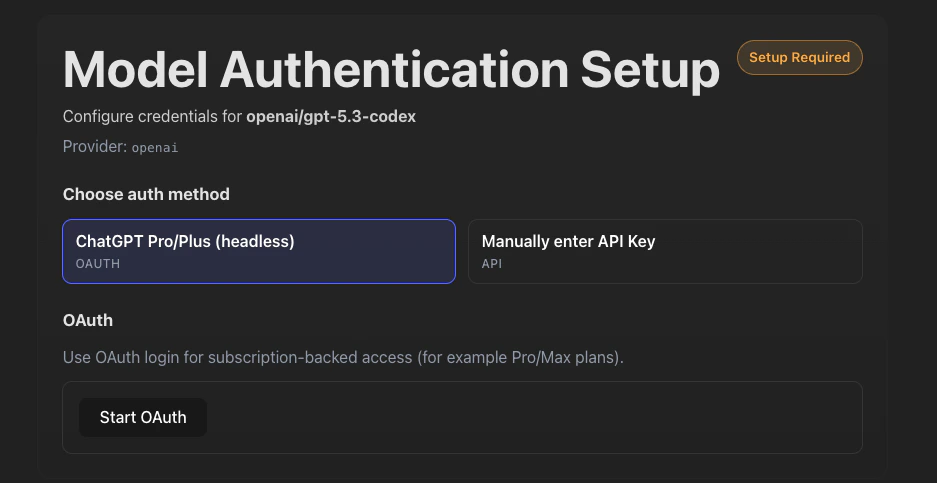
Once you have created your first user and signed in, the dashboard will ask you to give access to an OpenAI account via:
* Adding an API key: You can get an OpenAI key via the OpenAI developer console.
* Signing into a subscription account: If you pick this method, OpenAI will give you an error during sign in to enable the device flow login method. You need to follow the instructions on that popup and then try signing into TeamCopilot again.
 ## Setting up with Azure OpenAI
Azure OpenAI is configured by the TeamCopilot service administrator through environment variables instead of the in-app auth flow.
To use Azure OpenAI:
* Stop the running TeamCopilot instance
* In the `.env` file created by TeamCopilot (in your workspace directory), set the Azure credentials and deployment details:
```bash theme={null}
AZURE_API_KEY=
AZURE_OPENAI_ENDPOINT=https://.openai.azure.com/
OPENCODE_MODEL=azure-openai/
```
* Replace `` with your Azure OpenAI resource name
* Replace `` with the Azure deployment name you created in Azure OpenAI
* Restart the server using `npx teamcopilot start`
After the server restarts, TeamCopilot will use the Azure OpenAI deployment configured in those environment variables. In the UI this provider is shown as managed by the administrator and is read-only for regular users.
## What the UI does
When the app detects missing credentials, it redirects users to the OpenCode auth setup screen instead of the normal chat UI.
If the provider is managed by environment variables, users can view the configured provider but they cannot edit those values from the browser.
## Setting up with Gemini
Gemini is configured by the TeamCopilot service administrator through environment variables instead of the in-app auth flow.
To use Gemini:
* Stop the running TeamCopilot instance
* In the `.env` file created by TeamCopilot (in your workspace directory), set the Vertex project, credentials, location, and model details:
```bash theme={null}
GOOGLE_CLOUD_PROJECT=
GOOGLE_APPLICATION_CREDENTIALS=/path/to/service-account.json
VERTEX_LOCATION=global
OPENCODE_MODEL=google-vertex/
```
* Replace `` with your Google Cloud project ID
* Point `GOOGLE_APPLICATION_CREDENTIALS` to a readable Google Cloud service account JSON key file
* Set `VERTEX_LOCATION` to a Vertex region or endpoint such as `global` or `us-central1`
* Replace `` with the Gemini model id you want to use
* If you are using a provider-specific OpenCode Vertex backend, keep that provider prefix in `OPENCODE_MODEL`
* Restart the server using `npx teamcopilot start`
After the server restarts, TeamCopilot will use the Gemini model configured in those environment variables. In the UI this provider is shown as managed by the administrator and is read-only for regular users.
## Setting up with Claude / Anthropic
### Using Anthropic API key
If instead, you want to use Claude:
* Stop the running TeamCopilot instance
* In the `.env` file created by TeamCopilot (in your workspace directory), modify the `OPENCODE_MODEL` to be `OPENCODE_MODEL=anthropic/claude-opus-4-6`
* Restart the server using `npx teamcopilot start`
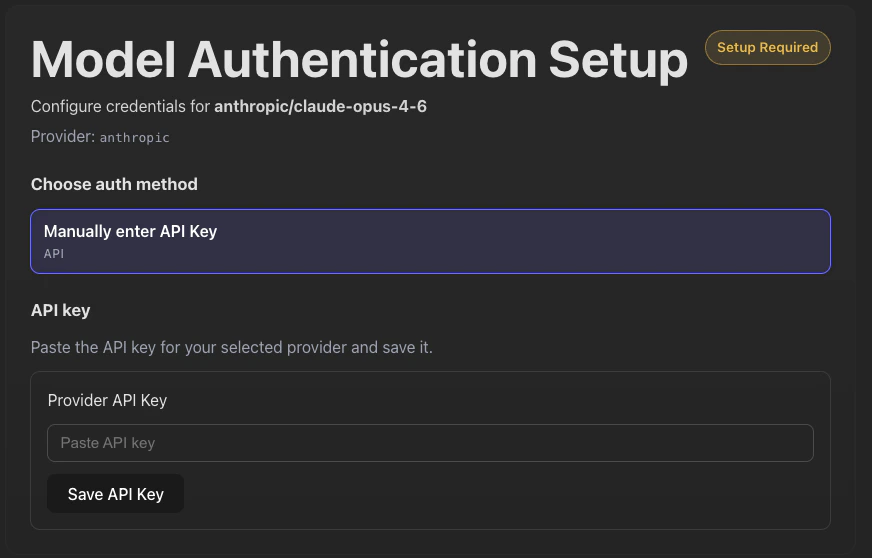
* Now when you visit the dashboard, it will ask you to give access to your Claude account.
With Anthropic, the only available method is via an API key.
## Setting up with Azure OpenAI
Azure OpenAI is configured by the TeamCopilot service administrator through environment variables instead of the in-app auth flow.
To use Azure OpenAI:
* Stop the running TeamCopilot instance
* In the `.env` file created by TeamCopilot (in your workspace directory), set the Azure credentials and deployment details:
```bash theme={null}
AZURE_API_KEY=
AZURE_OPENAI_ENDPOINT=https://.openai.azure.com/
OPENCODE_MODEL=azure-openai/
```
* Replace `` with your Azure OpenAI resource name
* Replace `` with the Azure deployment name you created in Azure OpenAI
* Restart the server using `npx teamcopilot start`
After the server restarts, TeamCopilot will use the Azure OpenAI deployment configured in those environment variables. In the UI this provider is shown as managed by the administrator and is read-only for regular users.
## What the UI does
When the app detects missing credentials, it redirects users to the OpenCode auth setup screen instead of the normal chat UI.
If the provider is managed by environment variables, users can view the configured provider but they cannot edit those values from the browser.
## Setting up with Gemini
Gemini is configured by the TeamCopilot service administrator through environment variables instead of the in-app auth flow.
To use Gemini:
* Stop the running TeamCopilot instance
* In the `.env` file created by TeamCopilot (in your workspace directory), set the Vertex project, credentials, location, and model details:
```bash theme={null}
GOOGLE_CLOUD_PROJECT=
GOOGLE_APPLICATION_CREDENTIALS=/path/to/service-account.json
VERTEX_LOCATION=global
OPENCODE_MODEL=google-vertex/
```
* Replace `` with your Google Cloud project ID
* Point `GOOGLE_APPLICATION_CREDENTIALS` to a readable Google Cloud service account JSON key file
* Set `VERTEX_LOCATION` to a Vertex region or endpoint such as `global` or `us-central1`
* Replace `` with the Gemini model id you want to use
* If you are using a provider-specific OpenCode Vertex backend, keep that provider prefix in `OPENCODE_MODEL`
* Restart the server using `npx teamcopilot start`
After the server restarts, TeamCopilot will use the Gemini model configured in those environment variables. In the UI this provider is shown as managed by the administrator and is read-only for regular users.
## Setting up with Claude / Anthropic
### Using Anthropic API key
If instead, you want to use Claude:
* Stop the running TeamCopilot instance
* In the `.env` file created by TeamCopilot (in your workspace directory), modify the `OPENCODE_MODEL` to be `OPENCODE_MODEL=anthropic/claude-opus-4-6`
* Restart the server using `npx teamcopilot start`
* Now when you visit the dashboard, it will ask you to give access to your Claude account.
With Anthropic, the only available method is via an API key.
 ### Using Google Vertex
If you want to use Anthropic models through Google Vertex, configure the service administrator environment variables and set the provider-specific model id:
```bash theme={null}
GOOGLE_CLOUD_PROJECT=
GOOGLE_APPLICATION_CREDENTIALS=/path/to/service-account.json
VERTEX_LOCATION=global
OPENCODE_MODEL=google-vertex-anthropic/
```
* `google-vertex-anthropic` is the provider prefix for Anthropic models on Google Vertex
* Use the Anthropic model id you want to run through Vertex in `OPENCODE_MODEL`
* Keep the Google Cloud project, credentials, and location variables configured for the workspace
## General recommendations
* We recommend using the API key method since this will ensure no interruptions during workflows as long as you have credits in your account (as opposed to subscription which can have very heavy rate limits, especially if many people are using this tool). This is especially true for Claude since their terms of use states that their subscription account should only be used when using Claude code.
* Use any model that is equal to or more capable than:
* For OpenAI: Codex 5.3+ or GPT 5.4+
* For Azure OpenAI: a deployment backed by Codex 5.3+ or GPT 5.4+
* For Gemini: a model that matches your team's needs and is supported by the configured Vertex provider
* For Anthropic: Claude Opus 4.6+
## Changing models after initial setup
If you want to change the model or model provider used after the initial setup, you can do so by changing the `OPENCODE_MODEL` value in the `.env` file in the workspace directory and then restarting the TeamCopilot service.
In addition to this, if you ever want to change the auth method (switch to API method from subscription method or vice versa):
* Login as an Engineer into TeamCopilot
* Navigate to the AI chat section
* Click on the "Reconfigure Opencode Auth" button
* Follow the instructions to setup new auth.
### Using Google Vertex
If you want to use Anthropic models through Google Vertex, configure the service administrator environment variables and set the provider-specific model id:
```bash theme={null}
GOOGLE_CLOUD_PROJECT=
GOOGLE_APPLICATION_CREDENTIALS=/path/to/service-account.json
VERTEX_LOCATION=global
OPENCODE_MODEL=google-vertex-anthropic/
```
* `google-vertex-anthropic` is the provider prefix for Anthropic models on Google Vertex
* Use the Anthropic model id you want to run through Vertex in `OPENCODE_MODEL`
* Keep the Google Cloud project, credentials, and location variables configured for the workspace
## General recommendations
* We recommend using the API key method since this will ensure no interruptions during workflows as long as you have credits in your account (as opposed to subscription which can have very heavy rate limits, especially if many people are using this tool). This is especially true for Claude since their terms of use states that their subscription account should only be used when using Claude code.
* Use any model that is equal to or more capable than:
* For OpenAI: Codex 5.3+ or GPT 5.4+
* For Azure OpenAI: a deployment backed by Codex 5.3+ or GPT 5.4+
* For Gemini: a model that matches your team's needs and is supported by the configured Vertex provider
* For Anthropic: Claude Opus 4.6+
## Changing models after initial setup
If you want to change the model or model provider used after the initial setup, you can do so by changing the `OPENCODE_MODEL` value in the `.env` file in the workspace directory and then restarting the TeamCopilot service.
In addition to this, if you ever want to change the auth method (switch to API method from subscription method or vice versa):
* Login as an Engineer into TeamCopilot
* Navigate to the AI chat section
* Click on the "Reconfigure Opencode Auth" button
* Follow the instructions to setup new auth.
