
Setting up with GPT / OpenAI
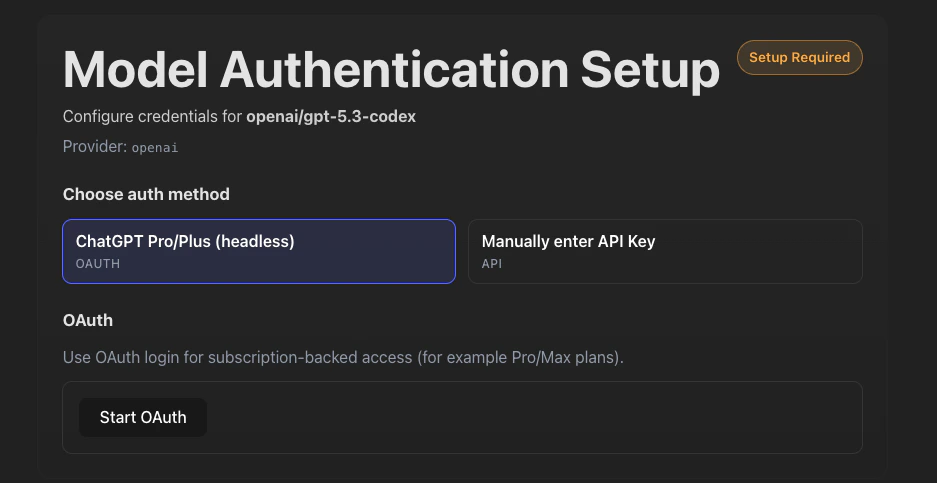
Once you have created your first user and signed in, the dashboard will ask you to give access to an OpenAI account via:- Adding an API key: You can get an OpenAI key via the OpenAI developer console.
- Signing into a subscription account: If you pick this method, OpenAI will give you an error during sign in to enable the device flow login method. You need to follow the instructions on that popup and then try signing into TeamCopilot again.
Setting up with Azure OpenAI
Azure OpenAI is configured by the TeamCopilot service administrator through environment variables instead of the in-app auth flow. To use Azure OpenAI:- Stop the running TeamCopilot instance
- In the
.envfile created by TeamCopilot (in your workspace directory), set the Azure credentials and deployment details:
- Replace
<your-resource>with your Azure OpenAI resource name - Replace
<your-deployment-name>with the Azure deployment name you created in Azure OpenAI - Restart the server using
npx teamcopilot start
What the UI does
When the app detects missing credentials, it redirects users to the OpenCode auth setup screen instead of the normal chat UI. If the provider is managed by environment variables, users can view the configured provider but they cannot edit those values from the browser.Setting up with Gemini
Gemini is configured by the TeamCopilot service administrator through environment variables instead of the in-app auth flow. To use Gemini:- Stop the running TeamCopilot instance
- In the
.envfile created by TeamCopilot (in your workspace directory), set the Vertex project, credentials, location, and model details:
- Replace
<your-gcp-project-id>with your Google Cloud project ID - Point
GOOGLE_APPLICATION_CREDENTIALSto a readable Google Cloud service account JSON key file - Set
VERTEX_LOCATIONto a Vertex region or endpoint such asglobalorus-central1 - Replace
<your-model-id>with the Gemini model id you want to use - If you are using a provider-specific OpenCode Vertex backend, keep that provider prefix in
OPENCODE_MODEL - Restart the server using
npx teamcopilot start
Setting up with Claude / Anthropic
Using Anthropic API key
If instead, you want to use Claude:- Stop the running TeamCopilot instance
- In the
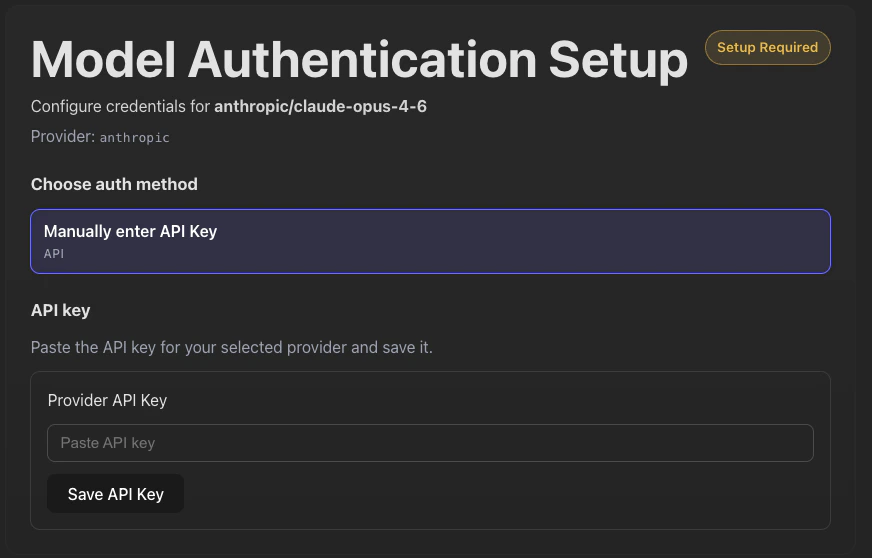
.envfile created by TeamCopilot (in your workspace directory), modify theOPENCODE_MODELto beOPENCODE_MODEL=anthropic/claude-opus-4-6 - Restart the server using
npx teamcopilot start - Now when you visit the dashboard, it will ask you to give access to your Claude account.
Using Google Vertex
If you want to use Anthropic models through Google Vertex, configure the service administrator environment variables and set the provider-specific model id:google-vertex-anthropicis the provider prefix for Anthropic models on Google Vertex- Use the Anthropic model id you want to run through Vertex in
OPENCODE_MODEL - Keep the Google Cloud project, credentials, and location variables configured for the workspace
General recommendations
- We recommend using the API key method since this will ensure no interruptions during workflows as long as you have credits in your account (as opposed to subscription which can have very heavy rate limits, especially if many people are using this tool). This is especially true for Claude since their terms of use states that their subscription account should only be used when using Claude code.
- Use any model that is equal to or more capable than:
- For OpenAI: Codex 5.3+ or GPT 5.4+
- For Azure OpenAI: a deployment backed by Codex 5.3+ or GPT 5.4+
- For Gemini: a model that matches your team’s needs and is supported by the configured Vertex provider
- For Anthropic: Claude Opus 4.6+
Changing models after initial setup
If you want to change the model or model provider used after the initial setup, you can do so by changing theOPENCODE_MODEL value in the .env file in the workspace directory and then restarting the TeamCopilot service.
In addition to this, if you ever want to change the auth method (switch to API method from subscription method or vice versa):
- Login as an Engineer into TeamCopilot
- Navigate to the AI chat section
- Click on the “Reconfigure Opencode Auth” button
- Follow the instructions to setup new auth.
