
Claude Code is Anthropic's command-line tool that brings Claude directly into your terminal. Instead of switching between your editor and a chat window, you work with an AI agent that can read your files, run commands, and edit code alongside you.
This guide covers everything you need to know: how it works under the hood, how to set it up, and how to extend it with custom skills and hooks.
What is Claude Code?
Claude Code is an agentic coding assistant. You describe what you want in natural language, and it figures out how to accomplish it using a set of tools: reading files, writing code, running terminal commands, searching the web.
Unlike a simple chatbot, Claude Code operates in a loop. It thinks about your request, takes an action, observes the result, and decides what to do next. This continues until the task is complete.
Here's what makes it different from copy-pasting code into ChatGPT:
- It sees your codebase. Claude Code can read any file in your project, understand the structure, and make changes that fit your existing patterns.
- It runs commands. Need to install a package, run tests, or check git status? It does that directly.
- It iterates. If a test fails, it reads the error, fixes the code, and tries again.
How the Agent Loop Works
The core of Claude Code is an agent loop. Understanding this helps you work with it more effectively.
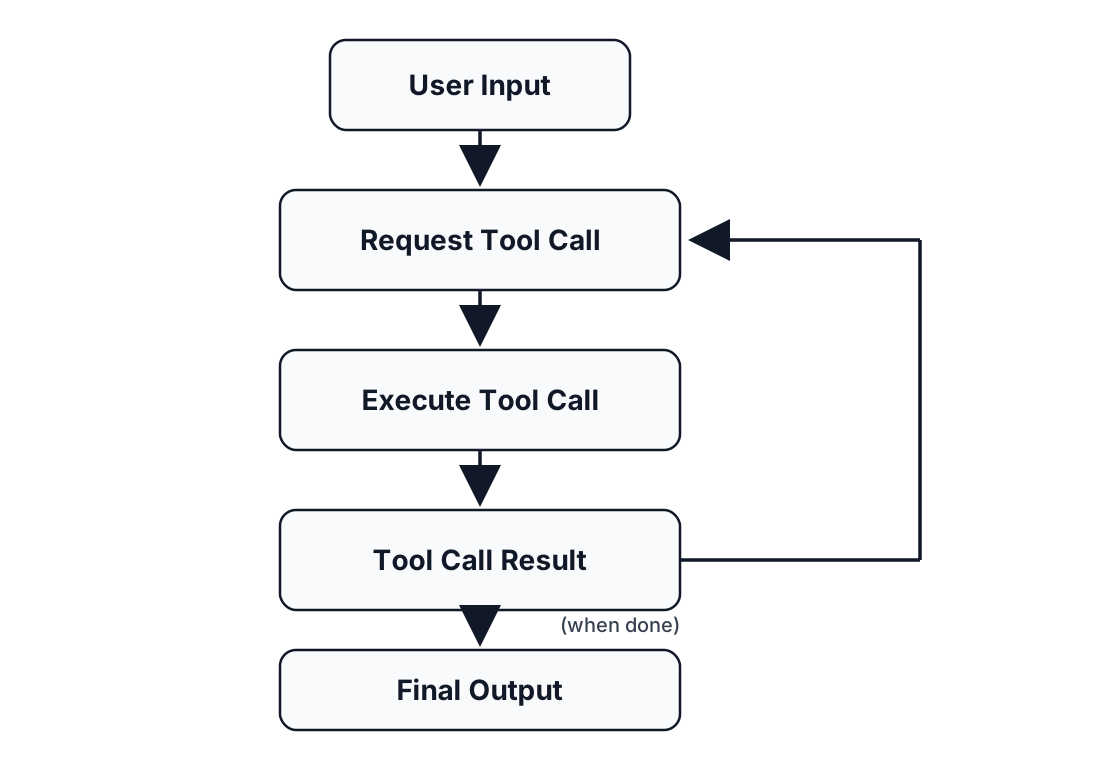
Claude receives your input, decides which tool to call (Read, Edit, Bash, etc.), executes it, and feeds the result back into the loop. This continues—reading files, making edits, running commands—until the task is complete.
Key insight: Claude Code doesn't just execute a single action. It's autonomous. If it edits a file and the linter fails, it sees that failure and fixes it. This is what makes it powerful for complex tasks.
Installation and Setup
Prerequisites
- Node.js 18 or higher
- A Claude Pro/Max subscription, or an Anthropic API key
Install
1npm install -g @anthropic-ai/claude-codeFirst Run
Navigate to your project and start Claude Code:
1cd your-project
2claude
On first run, it will prompt you to authenticate. You can either:
- Sign in with your Claude Pro/Max account
- Enter an API key directly
Configuration Directory
Claude Code stores configuration in ~/.claude/. The key files:
1~/.claude/
2├── settings.json      # Global settings (hooks, preferences)
3├── skills/            # Custom skills (more on this later)
4└── claude.md          # Global instructions for Claude
You can also create a CLAUDE.md file in any project directory. Claude reads this automatically and follows project-specific instructions.
Built-in Tools
Claude Code comes with tools for common development tasks. You don't need to configure these—they work out of the box.
File Operations
| Tool | What it does |
|---|---|
| Read | Read file contents (including images and PDFs) |
| Edit | Make targeted edits to existing files |
| Write | Create new files or overwrite existing ones |
| Glob | Find files matching a pattern (e.g., **/*.tsx) |
| Grep | Search file contents with regex |
| NotebookEdit | Edit Jupyter notebook cells |
Terminal
| Tool | What it does |
|---|---|
| Bash | Run shell commands |
Claude can run any command: npm install, git commit, pytest, etc. It shows you what it's about to run and asks for approval (unless you've allowed specific commands).
Web
| Tool | What it does |
|---|---|
| WebSearch | Search the web for information |
| WebFetch | Fetch and read a specific URL |
Code Intelligence
| Tool | What it does |
|---|---|
| LSP | Go to definition, find references, hover info |
This integrates with language servers when available, giving Claude the same code navigation you have in your IDE.
Agentic Tools
| Tool | What it does |
|---|---|
| Task | Launch subagents for complex multi-step tasks |
| AskUserQuestion | Ask clarifying questions when needed |
| TodoList tools | Track tasks with TaskCreate, TaskUpdate, TaskList, TaskGet |
The Task tool spawns specialized subagents to handle exploration, planning, or code execution in parallel. The todo list tools help Claude track progress on complex multi-step work.
Creating Custom Skills
Skills are reusable prompts that extend what Claude Code can do. They live in ~/.claude/skills/ and can be invoked with a slash command.
Anatomy of a Skill
Each skill is a folder containing a skill.md file:
1~/.claude/skills/
2└── my-skill/
3    └── skill.md
The skill.md file has frontmatter and instructions:
1---
2name: deploy
3description: Deploy the current project to production
4tools:
5  - Bash
6  - Read
7---
8
9# Deploy Skill
10
11Deploy the current project to production.
12
13## Steps
14
151. Run the test suite: `npm test`
162. If tests pass, build the project: `npm run build`
173. Deploy using: `./scripts/deploy.sh`
184. Verify the deployment by checking the health endpoint
19
20## Notes
21
22- Always run tests before deploying
23- If any step fails, stop and report the error
How Skills Work
When you type /deploy in Claude Code, it:
- Finds the skill matching "deploy"
- Loads the instructions from
skill.md - Follows those instructions using the allowed tools
The description field also helps Claude match natural language requests. If you say "deploy this to production," Claude recognizes the intent and uses the skill automatically.
Project-Specific Skills
Skills don't have to be global. You can add skills to a specific project by creating a .claude/skills/ directory in your project root:
1your-project/
2├── .claude/
3│   └── skills/
4│       └── run-tests/
5│           └── skill.md
6├── src/
7└── package.json
Project-specific skills are useful for:
- Custom deployment scripts unique to that project
- Project-specific code generation patterns
- Team workflows that shouldn't be global
When you run Claude Code in that project directory, it picks up both global skills (from ~/.claude/skills/) and project-specific skills (from .claude/skills/).
Hooks: Automating Before and After Commands
Hooks let you run scripts before or after Claude uses a tool. This is useful for:
- Auto-formatting code after edits
- Running linters before commits
- Logging tool usage
- Adding custom validation
Hook Types
| Hook | When it runs |
|---|---|
| PreToolUse | Before Claude uses a tool |
| PostToolUse | After Claude uses a tool |
| Notification | When Claude wants to notify you |
| Stop | When Claude finishes a task |
Configuring Hooks
Add hooks to ~/.claude/settings.json:
1{
2  "hooks": {
3    "PostToolUse": [
4      {
5        "matcher": "Edit",
6        "command": "npx prettier --write $CLAUDE_FILE_PATH"
7      }
8    ]
9  }
10}
This runs Prettier on any file Claude edits.
Hook Environment Variables
Hooks receive context through environment variables:
| Variable | Description |
|---|---|
CLAUDE_TOOL_NAME | Name of the tool being used |
CLAUDE_FILE_PATH | Path to the file (for file operations) |
CLAUDE_TOOL_INPUT | JSON string of the tool's input |
CLAUDE_TOOL_OUTPUT | JSON string of the tool's output (PostToolUse only) |
Example: Block Dangerous Commands
1{
2  "hooks": {
3    "PreToolUse": [
4      {
5        "matcher": "Bash",
6        "command": "echo $CLAUDE_TOOL_INPUT | grep -q 'rm -rf' && exit 1 || exit 0"
7      }
8    ]
9  }
10}
If the hook exits with a non-zero code, Claude Code blocks the tool use. This prevents rm -rf commands from running.
MCP Servers: Extending with External Tools
MCP (Model Context Protocol) lets you add custom tools to Claude Code. Instead of writing a skill that runs a bash script, you can expose a proper tool interface.
What MCP Does
- Adds new tools Claude can use (database queries, API calls, etc.)
- Provides structured input/output instead of parsing command output
- Allows persistent connections (useful for databases, external services)
Basic Configuration
Add MCP servers in ~/.claude/settings.json:
1{
2  "mcpServers": {
3    "postgres": {
4      "command": "npx",
5      "args": ["-y", "@modelcontextprotocol/server-postgres"],
6      "env": {
7        "DATABASE_URL": "postgresql://localhost/mydb"
8      }
9    }
10  }
11}
Now Claude has access to database tools and can query your PostgreSQL database directly.
Where to Find MCP Servers
- MCP Server Registry - Official servers for common integrations
- Build your own following the MCP specification
MCP is powerful but more involved than skills. For most customizations, skills are simpler. Use MCP when you need structured tool interfaces or persistent connections.
Beyond Coding
Despite the name, Claude Code isn't limited to writing code. It's a general-purpose agent that happens to excel at software development. You can use it for any task that benefits from file operations, web searches, and iterative work.
Content creation. Write blog posts, documentation, or marketing copy. Claude can research topics with WebSearch, draft content, and refine it based on your feedback—all without leaving the terminal.
Research and analysis. Analyze competitors, summarize documentation, or gather information from multiple sources. Claude can fetch web pages, extract relevant data, and compile findings into a report.
Data processing. Parse CSV files, transform JSON, or generate reports from raw data. Claude reads the files, writes processing scripts, and runs them.
Project management. Generate changelogs from git history, create release notes, or audit dependencies. Anything you'd do with shell commands and file editing, Claude can help with.
The key is that Claude Code has access to your filesystem and can run commands. This makes it useful for any workflow that involves reading, writing, or transforming files—not just code.
Tips for Effective Use
1. Write a good CLAUDE.md file.
Put project-specific context in a CLAUDE.md at your project root. Include:
- How to run tests
- Code style preferences
- Architecture decisions
- Common commands
Claude reads this automatically and follows your conventions.
2. Be specific about what you want.
Instead of "make this better," say "refactor this function to use async/await and add error handling for the API call."
3. Let Claude iterate.
Don't interrupt after every action. Let it complete its loop. If it makes a mistake, it often catches and fixes it on the next turn.
4. Use skills for repeated workflows.
If you find yourself giving the same instructions repeatedly, make it a skill. Future requests become one-word commands.
5. Review before approving destructive commands.
Claude Code asks before running bash commands. Read them. Especially anything involving git push, rm, or production deployments.
What's Missing
Claude Code is powerful, but it has limitations worth knowing about.
It's CLI-only. You need to be comfortable with the terminal. Non-technical team members—product managers, designers, marketers—can't easily use it. There's no web interface, no GUI, no way to hand it to someone who doesn't live in the command line.
It's designed for individual use. Sharing skills and custom tools with your team is manual. You'd have to copy files around or commit them to a shared repo. There's no built-in way to manage permissions, audit usage, or control which tools different team members can access.
No centralized management. If you want to deploy Claude Code across an organization with consistent configurations, approved skills, and usage policies, you're on your own.
These aren't flaws—Claude Code is designed as a developer tool, and it excels at that. But if you need team collaboration, non-technical access, or enterprise controls, you'll need something built on top of it.
Projects like TeamCopilot address these gaps by providing a web interface, team-based permissions, shared skills, and centralized management—while using the same underlying agent capabilities.
Conclusion
Claude Code is more than a chat interface—it's an autonomous agent that can navigate your codebase, run commands, and iterate on problems. Understanding the agent loop helps you work with it effectively.
Start with the basics: installation, built-in tools, and a simple CLAUDE.md file. As you get comfortable, add custom skills for your common workflows and hooks for automation.
The goal isn't to hand off all coding to AI. It's to have a capable collaborator that handles the mechanical parts while you focus on the interesting problems.
Support the project
If this was useful, star TeamCopilot on GitHub.
TeamCopilot is a shared AI agent for teams with centralized context, permissions, and workflows.